Showing posts with label sales skills. Show all posts

Tuesday, October 27, 2009

Changing my permissions

In the past, I've provided many objects full perms. Unfortunately, some people have taken to using full perms items as a way of concealing their culpability in making collections of stolen goods, or making griefer tools.


If you receive an item which purports to be from me, but doesn't seem like my usual style, do not trust it!
Also, do not trust a scripted item which claims to be from me, but did not come from one of my stores*, Xstreet SL (with me listed as the seller), NCI, Primwynly or Twisted Thorn Textures.
* My stores are listed in my profile picks, and on this blog.

Unfortunately, this means that as I change things over, those will be the only places from which you can get my full perms freebies. Some no-mod/copy/transfer items (especially information notecards) will continue to be available for free duplication and spreading around SL.

Regrettably, I have to recommend to other creators of freebies and useful items that they do similarly. This is, quite frankly, dreadful because it limits how easily people can spread innovations.

I recommend that scripters who want to share knowledge make use of the scripting library forum at http://forums.secondlife.com/ - this way, the information is there, but if someone abuses it and creates malware, your name is not on it.

Provide goods for sale as "copy/no transfer" or "no copy/transfer" - modify or no modify as you prefer, though think hard before making cheap "modify/no copy/transfer" items.

Provide freebies as "modify/copy/no transfer", "no modify/copy/no transfer", or "no modify/copy/transfer".
When providing full perms freebies to centres of freebie-giveaways, such as New Citizens Inc or The Shelter or Yadni's Junkyard, ensure that the person you are giving it to knows which permissions you want it distributed as, and will change them accordingly.


Note that textures and sculpt maps have to be downloaded to be modified, then re-uploaded under the modifier's name. Animations and sounds can't be effectively modified. Thus, all of those are safe from the malware-with-you-as-creator problem, though the reselling problem is still there.
Unfortunately, I know of no way to protect items sold as components - they have to be at minimum copy/trans to be useful. I hate that.

The goal is to reduce the likelihood that someone will get an item of yours that is both modifiable and able to be given away: only one of those sets of permissions fits that bill, and they have to buy each and every copy.

Items which are not modifiable and able to be given away are safe to be out with your name on, even if they are both copy and trans, since they can only be given out in the original condition.
Items which are no trans can be modifiable, because the modifier cannot then give it out. (It is possible that the owner can make a griefing tool from it with your name as the creator, but the Lab can compare that with other copies of your item and see it for the blatant lie it is.)

I really, really hate having to look at my products and worry about how they might be misused. And I hate having to advise you all to do the same. But alas, no world is perfect.

Saturday, April 25, 2009

Single-prim vendor selling in SL

Many people in Second Life sell their products in scripted vendors. Many more seem not to know how to sell their products at all.

However, Second Life includes a very simple, straightforward way to sell products, with no scripts at all - extremely low lag and reliable. It's built in to the prim editing system.

Preparing the items


To start with, you need something to sell. Making that something is beyond the scope of this tutorial - but I have other tutorials for some of that, and you can always check out NCI and other tutorial places inworld.

Once you have your product exactly as you want it, you should make sure its permissions are set for sale.

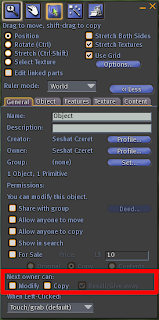
If your item is prim-based, set its permissions in the General tab, while it is rezzed inworld. That is more reliable for prim objects than setting permissions in the inventory.

For items that aren't prims, right click on the item in inventory, and select Properties. Set its permissions in the Properties window that appears.

In all cases, we are setting 'Next Owner' permissions - the permissions that the person we give or sell the item to will have. Those permissions can never be greater than the permissions we ourselves have.

When we create an item, we have full permissions on that item. If we give or sell someone else the item with a limited permissions set, then they give it back to us, we only have those limited permissions. Or even less, if they changed the 'next owner' permissions while they had it.
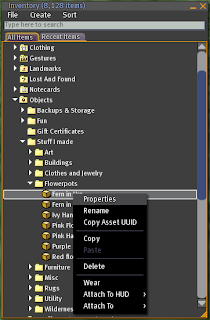
Permissions are Copy, Modify and Resell/Give Away. We usually call the third one Transfer.

If you give your customers COPY permissions, they can make copies of the item, they can keep backups in their inventory while a prim item is in world, they can make multiple outfits of clothing items, or make a full set of dining chairs from one sold chair.

If you deny them copy permissions, then if they accidentally break the item somehow (retexture it, distort one of the prims, delete a script), or if Second Life loses the item from its asset server, they have no backup and the item is lost or ruined for good.

TRANSFER (Resell/Give Away) permission allows the player to pass the item to someone else. Denying players TRANSFER permission means they can't use your item as a component of some sale product, and that they can't sell it when they're sick of it.
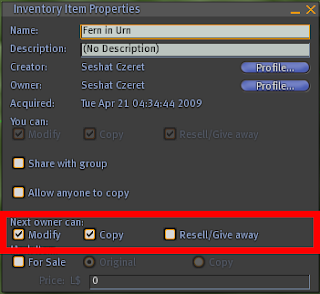
If you give a player both COPY and TRANSFER permissions, they can give away or sell it an unlimited number of the items. It is often necessary to do this if you're selling components to other builders - such as animations used in furniture, scripts for just about anything, sculpts for furnishings, buildings or jewelry, or textures used in almost anything.

When you give out both COPY and TRANSFER items, include a no-modify notecard explaining whether the person can resell the item as is or not.

When you give out freebies, include a no-modify notecard explaining that the item is to be a freebie, and whether or not you are willing to let other people sell it as is, or modify it and sell it.

MODIFY permission allows a player to tweak and adjust the item to suit them. There is very little reason for blocking modify permission of animations, clothing or skins created with graphics templates, sounds, and sculpties - the hard work in all of those is done outside SL. Even prim items can't be trivially duplicated - it's a lot of work to reverse engineer those.
Scripts, however, can be trivially duplicated by being cut and pasted, so I would recommend blocking modify perms for those, except for freebie or teaching scripts. In those, I suggest including a comment explaining what rights you pass on.

Preparing the image
Open your art package of preference. If you don't have one, The Gimp is free and available at http://www.gimp.org/. Tutorials are available there as well.

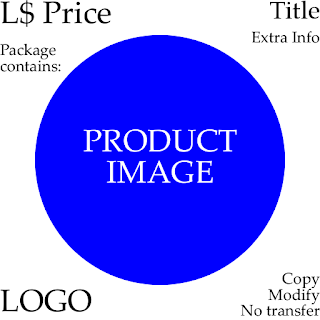
Create an image that answers the questions your customers are most likely to have about your product. For most products, provide an image of what it looks like, or what an avatar does when the product is working.

The price is a good thing to include (though some prefer not to, to avoid having to upload another image when the price changes). I personally think that if having the price visible sells one extra copy of the product, the upload is paid for.

Most customers like to see the permissions at a glance, and many customers want to know what they can expect to get in the product package before they buy it.

Make your image the same shape you want it to be in world. If you want a circular sign, make a circle. If you want a square sign, make a square. If you want a 4:3 ratio rectangle, make that.

Once that's done, if there's any transparency in the image, put a background colour you like behind it. (I find that it never helps to have a sign with transparency. If you disagree with me, skip the background.) Now save your sign in the native format of your art program. .psd for Photoshop users, .xcf for Gimp users.

Now resize your sign to powers of 2. Make each side 128, 256, 512 or 1024: ideally 512 or less. This will probably distort your sign - ignore that, it doesn't matter. It'll get fixed when you put it on the prim of the right shape.

If you want to test the image, making sure it looks right before you spend ten Lindens uploading it, use the SL Beta grid, which is a test version of the SL grid. Go to the wiki page talking about connecting to the preview grid. Once there, upload the image as if you were on the main grid, and put it on the same shape prim you intend to use in the main grid.

When you upload on the beta grid, it will claim it's charging you Lindenbucks, but it's charging you beta grid dollars and not money from your actual SL account. Beta grid dollars get renewed periodically; and stuff in your beta grid inventory WILL vanish every so often - it's a test platform and nothing is stable. But it works great for testing your uploaded creations for free.
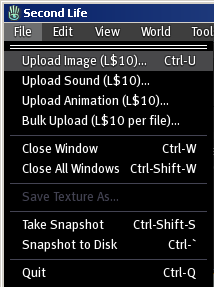
Once your lovely sale image has been created, it's time to upload it into SL. Make sure you have 10 Lindens (or more) in your account, then go up to the File menu and select Upload Image. A file browser window will open, and you can find and choose your nifty image.

Select it, and an image previewer will appear. If your file is not square, ignore how squished and ugly it looks - that's just the previewer squishing it into a square shape. Accept it, and it will be loaded into SL, into the Textures folder in your inventory. It can stay there for a while.

We'll put it on its prim of the correct shape a bit later.


Creating the box
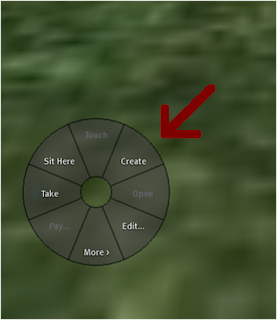

So much for preparation work. Now we can actually make our box!

Start by right clicking on the ground. If you're on a prim surface, that's okay too. Just right click on something groundlike. You should get a pie menu with Create in the top right corner. If you don't, you're probably in a place where you can't rez things, and you'll need to move to a sandbox, or to land you own.


If you're renting a shop, make sure you have the group tag associated with that shop over your name. (Right click on yourself, look for Groups, select the appropriate group, hit Activate.)
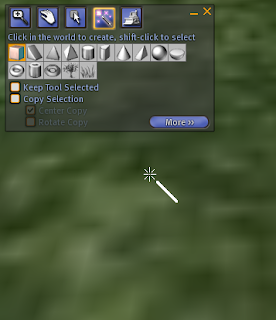


Once you have the right group activated, or are in a place you can rez, left click on Create. This will change your cursor to a magic wand symbol, and open a little window we call the Edit window. (It might be larger than the one in the image on the right - if so, that's okay.)


Look at the top of the menu in the picture. See how the box shape is highlighted? If the box shape isn't highlighted in yours, left click on the box shape, then move your cursor back to the land.
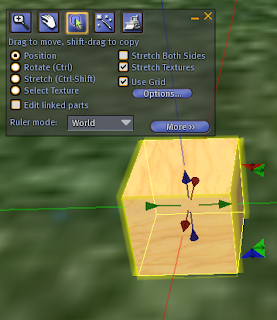


If you want one of the other shapes, that's okay too. This tutorial is based on the box, because it's easiest and this is for beginners. Just choose the other shape instead.


Now left click on the land again. This will give you a lovely plywood box.


Don't worry, we'll change the plywood part later, and we'll also change its shape so it makes your picture look right.


Packing the box
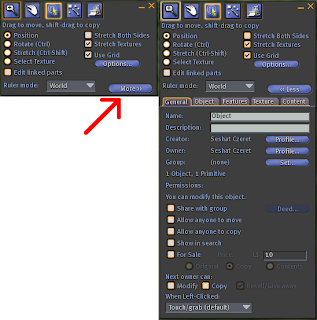
There might be a MORE >> button in the bottom right corner of the edit window. Click that, and you'll get a rather larger edit window.
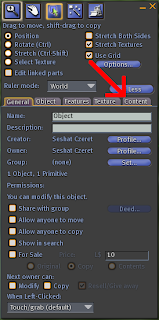


If you don't have the MORE >> button, you already have the larger edit window. Leave it that way.

Click on the Content tab.
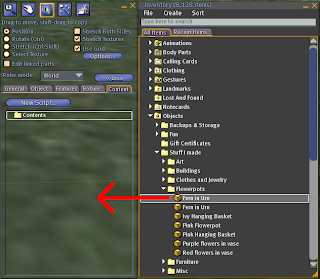
Look in your inventory for the items you want to sell. (If they're rezzed inworld and you want to package them into boxes, you'll need to take a copy into inventory.)

One you've found them in your inventory, left click and hold, then drag the mouse to the large empty window in the contents tab of your prim's edit window. Release the mouse once you're there.

If you have copy permission on the item, this will take a copy of the item and put it inside your prim.

If you do not have copy permission, this will take the copy you selected from your inventory, and put that in the prim.

Setting the box for sale
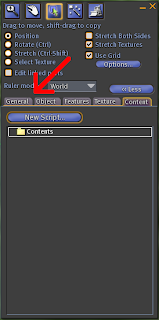
Now click on the General tab. Fill in the name of the object in the Name field, and a short description in the Description field.


Then go down to the bottom of the General tab. You will see a Show in Search checkbox. You're planning to sell this, so you probably want to advertise it. So click that checkbox and put a checkmark in it. This box only works if you're on land that is listed in Search->Places, but it does no harm to have it checked even if you aren't.
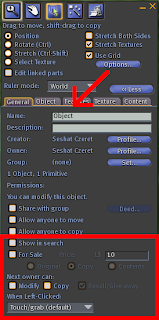


Beneath Show in Search is For Sale. Put a checkmark in that box. That will enable the text box to its right, which is the price text box. Fill that in.


Beneath the price are three options, Original, Copy and Contents.


If you want the box you're packing to be sold - as in, this exact box goes to the customer, not a copy of the box - select Original. Limited edition items are often sold this way.


If you want the customer to get a copy of the box, select Copy. People who sell furnishings often sell Copy: they rez the furniture inworld, and use these settings to have the furniture literally sell copies of itself.
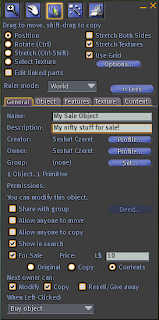


Contents is the most common setting. When a customer buys a box with the 'contents' setting, they get a folder that contains everything inside the box.


Beneath those settings are the permissions. I recommend setting them to the same permissions as the ones you set for the items themselves, back at the start. (in Preparing the items.)


Finally, there's a dropdown menu. It controls what happens when the customer clicks on the box. I recommend setting it to Buy object.

Technically, you could leave it at that. But a plywood box doesn't make a very good product advertisement!


Adding the image
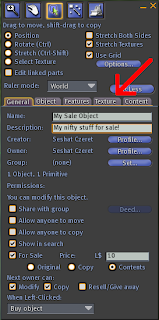


Click on the Texture tab. Once you have, look for the box with the plywood image, and click on that. This will open a browser window for your textures.
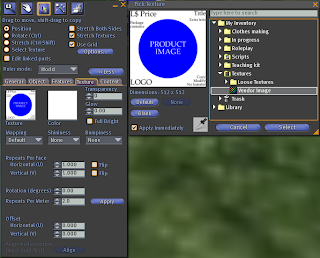


Find the texture you want on the box, and select it.


Shaping and placing the box

Select the Object tab. Click on the Stretch button, and then you can see the little red, green, blue and white boxes around your box.
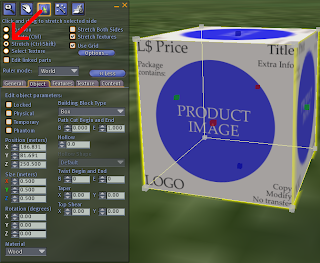
Click and hold on one of those boxes, then drag it towards or away from the centre of your box to shape the box.

If you prefer, you can use the X, Y and Z Size text boxes to enter the exact size you want the box to be.
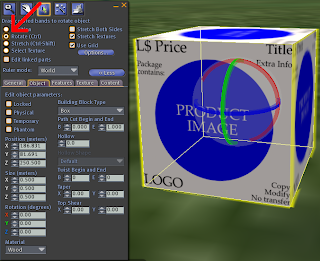


If your image doesn't stretch with the box, make sure Stretch Texture in the top right corner of the Edit window has a checkmark in it. You can fix a texture that didn't stretch by going to the Texture tab and setting both horizontal and vertical repeats to 1.

Once your box is shaped to the same aspect ratio you made the image at, the image will look right. All the distortions we did will be undone.

Now you have a box that is shaped correctly, use rotation and position tools to place it in your shop.


The Rotate button provides red, green and blue circles around the box, and you hold down and drag each circle to rotate the box around the centre point.

You can also fill in degrees of rotation in the Object tab, at the bottom left.

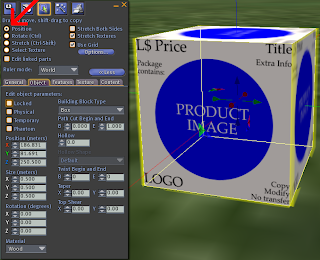
The Position button provides red, green and blue arrows, which you click and drag. The Position numbers are also editable in the Object tab.


Additional notes

You can sell your objects in 'boxes' of any shape and size. Most people who use this method use rectangular single-prim boxes because it's convenient, easy, and you can put an informative sign on it.

But don't let that stop you from selling goods in teddy bears, lollipops, or bullwhips if you prefer.
Thursday, October 2, 2008

How to complain effectively

You bought something - maybe from me, maybe from someone else - and you're not happy with it. How do you get satisfaction?

Conversely: sellers, how do you know when a customer is doing their best to be fair about a transaction they're unhappy with?


And how do you avoid being the Unruly Customer in a seller's blog? This guy made it all but impossible for the seller to help him!

The really short version

1. Check the seller's profile, find out whether they prefer to be contacted by IM, by notecard, by email, or by some other means.

2. Check your mute list. If you've muted the seller (deliberately or by accident), they are completely unable to deliver. The SL server code forbids them from giving you things, or even contacting you to let you know!
If this has happened, send an apology to the seller and ask them if they'd mind re-sending. And correct the mute! The seller can't even reply if you don't.

3. Check your transaction history (www.secondlife.com, log in, select 'My Account', select 'Transaction History'). Find the transaction number and date of the sale.
If you bought from a third party site like OnRez or SLExchange, check their records as well and get the transaction number and date there.

4. Contact the seller by their preferred method. Give them:

* The transaction number and date.
* Your chief complaint in two sentences or less. (EG: "my package didn't get delivered", or "the demo fit my leg but the sale boot doesn't".)
* The correction you would like. (EG: "I would like a redelivery of the package, please", or "I'd like a pair of boots the same size as the demo, please.")

In this contact, be polite. Presume the problem is an accident, or is the fault of a third party. Expect them to be willing to solve the problem.


5. Expect them to do some basic checking to be sure you're not a scammer. Sellers - especially busy sellers - see more scams than buyers do. It's just common sense for them to check the transaction log: and it also gives them information like which vendor the product was supposed to come from, and at what time. They can use that sort of information to try to fix the problem long-term.

6. Expect to do some problem-solving with them. They'll want to figure out what happened, so their other customers don't face the same problem.

6a. If you purchased through a third-party site, such as OnRez or SLExchange, or through a vendor system, the seller may ask you to coordinate with a representative from them to do the problem-solving. This is a quite legitimate step for them to take, though I acknowledge that it can be annoying to have to contact yet another person.

7. A good seller will appreciate the time you've taken, and will attempt to correct your problem.
A really good seller will listen even if it turns out that you misread the sales information, will offer a refund (where a refund is possible: copy/no-trans products are difficult to refund), and will try to figure out a better way to express the sales information. Sure, the improved sales information is no help to you right now, but it's evidence that the seller is constantly trying to improve his or her service.

7a. However, the seller's obligation is to provide you with the product as stated in the sales information. If you failed to read the available before-sale information, or if you simply changed your mind about the purchase, they are under no obligation to do anything. If they do, it's them being generous. Be grateful!

8. If the seller is rude, fails to provide the product as advertised, or takes longer than a few days to get back to you despite you trying IM, Notecard, and any other contact methods in their profile, read the long version.


The really long version

Know your legal rights
First, you need to figure out what your rights are. Linden Lab stays out of inter-resident disputes for the most part, but you have basic legal rights regardless of whether the world you're in is based on binary data or atoms.

Your basic right is to have a product which functions according to the claims made of it by its advertising. If you don't receive the product, or the product doesn't work as advertised, or a piece of clothing doesn't look like the photograph, you have a good reason to complain.

Read the advertising carefully - if you want a product to sort and organise megaprims, but you buy a product designed to organise textures, it's not the seller's fault if it doesn't organise megaprims.

Also, check the local conditions. I bought a gorgeous scripted moving kitten, but it didn't work in the place where I first took it out. However, it wasn't the seller's fault! I was in a location where scripts had been disabled. I moved, and the kitten worked beautifully. (And is still gorgeous.)
The seller's responsibility is to produce a product which can work. The environment is out of the seller's control.

Finally, be sure to read all the documentation available, both before and after sale. Most scripted systems are sold at a price the ordinary Second Life resident is willing to afford - and therefore, you get to configure them yourself. This is perfectly okay, because it's part of the deal that's offered to you before you pay the seller.
On the other hand, if the manual is written in Klingon, or unintelligible gobbledygook, you do have a right to complain about that!


Further Reading
Check the following sites, the sites of member nations or states, or the equivalent site where you are.
Note that international deals are not well handled by the current world legal system. The seller is governed by the laws in the seller's atomic-world location. The purchaser is governed by the laws in the purchaser's atomic-world location. The only binary-world laws that govern the transaction are those of the terms of service of the involved ISPs and Second Life.

Terms of Service
Community Standards

Australian Competition and Consumer Commission
Canada's Office of Consumer Affairs
The European Union's Consumer Affairs commission
The United States' Federal Trade Commission


Know your moral rights

Legally, you have no recourse if you are offered a plywood box for L$10000, you buy it, and you get a plywood box that's identical to one you could have rezzed yourself for free. You were offered a product, you accepted, you paid, you got the product you were offered.

Morally, of course, that's a rather ridiculous sale.

Talk to your friends about what's morally right, but be aware that your friends will be biased in your favour.


Decide what you want

Think about your legal and moral rights, and decide what correction is satisfactory, and what correction is the absolute best you would ever get. (Try to keep the latter within the bounds of reason!)

Decide what's about halfway between the two. That's what you're going to ask for.


Decide how much effort to go to

It's very easy to get carried away, thinking about 'the principle of the thing', or 'it's only right'. Remember that L$250 to L$280 represents US$1. There's no point in fighting for a whole day over US$1.

Conversely, if you've spent thousands on Linden on a custom product, there's no point in giving up after less than an hour.


Collect supporting information

Store copies of the supporting information not just in-world, but in a document on your hard drive at home.


Record the transaction number and date of each relevant transaction in the Second Life (or OnRez or SLExchange) transaction history.

Keep any notecards that were available before the sale. Photograph the product advertisements, or save image files from web-based stores. This is your record of what you were promised.

If the job is a custom job, keep a record of the specifications, the history of the job as it progressed, and the unsatisfactory delivered product.

Keep a record of the complaint history as it progresses, as well.


Start complaining

Use the process listed at the top of this blog entry (if you haven't already), to make your initial complaint. If referred to another person, repeat your initial complaint to that person - the chances are good that your first contact didn't pass all the information on.

Your initial complaint should be to the seller. If the seller is not the creator, the seller may refer you to them - that's perfectly okay. Go to the creator, then.

If the sale was through a third-party site, the seller or creator may refer you to them. Again, that's perfectly okay, and go to them.

If anyone takes something from you, request a receipt. The receipt (if in-world) should be a copy-okay, trans-okay, no-mod notecard created by that person, containing the date, the item taken, and the purpose for which they took it.
90% of the time you won't need the receipt. But if you do need it and don't have it, it could be difficult proving that you're not trying to scam.
The transaction history will help - but only you, the person who took it, and the Lindens can see that transaction. Third parties can see a copy of a no-mod, copy/trans notecard.


At all times, keep your tone calm and polite. It's fine to be firm, it's fine to say something like 'I'm really frustrated'. It's not okay to insult the other person, or to yell or scream or swear at them.

If you're offered an unsatisfactory solution, let them know it's unsatisfactory and why. Say something like 'according to the terms of service/according to law in my part of the world, I'm entitled to X'; or 'what you are offering is not the same as what you advertised'.


If your first contacts don't resolve things

If the seller was the creator and the transaction was with them directly, go to the next section.

If you have more than one person involved, and the one you were directed to is unable or unwilling to help you, let the others know. Show them the record you've been keeping of your interactions and attempts to solve the problem, and reiterate your request for your desired solution.


If no representative of the seller's side will provide a satisfactory solution

... it's time to consider Abuse Reports, support tickets, or real-world legal action.


Think again about how far you planned to take this. An Abuse Report or support ticket is probably worth doing, if the seller is breaching the Terms of Service or the Community Standards.

Real-world legal action is going to be harder - contact the consumer affairs bureau you researched back in the 'Know your legal rights' section. Discuss it with them, and take their advice.

I'm not a lawyer, so beyond this point, I defer to them.